

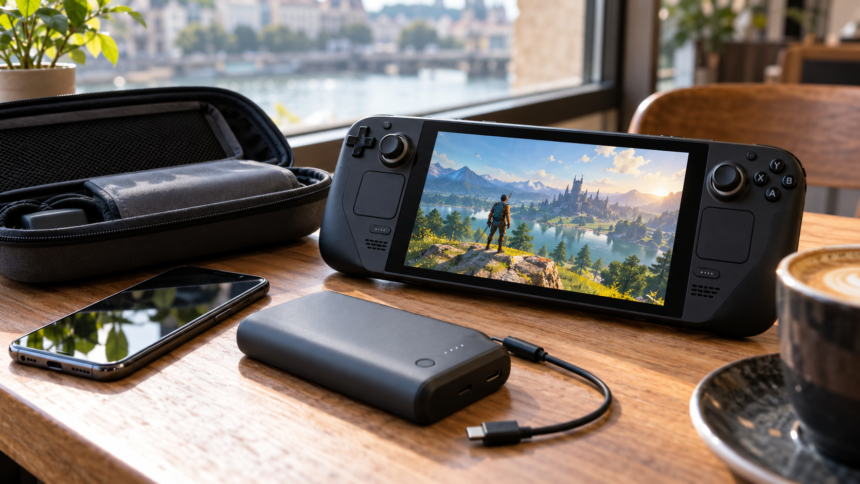
A portable gaming setup should make it easy to enjoy a game whenever you have time. Yet small problems can get in the way: unreadable menus, a battery that drains too quickly, or a game that refuses to open without Wi-Fi.
ThePortableGamer guides cover topics related to handheld, mobile, and travel gaming, including device selection, settings, accessories, and preparation for playing away from home. The website also publishes material under categories such as Geek Guides, Gaming, and How To.
Getting useful advice starts with finding a guide that matches your device and the problem you want to solve. This article explains what to look for and how to apply portable gaming advice without making your setup unnecessarily complicated.
What Are ThePortableGamer Guides?
ThePortableGamer guides are articles published on ThePortableGamer website. Its portable gaming coverage includes choosing hardware, adjusting performance, managing storage, and preparing games for travel. These subjects make the site relevant to readers researching how to play on handheld devices and phones.
However, a general gaming article and a device-specific support page serve different purposes. An overview can help you understand your options, while official documentation is better suited to checking compatibility requirements, charging specifications, and troubleshooting instructions.
Use gaming guides to plan your setup, then verify important technical details with the manufacturer or game developer.
Start With Your Games
Before comparing processors or screen sizes, write down the games you actually want to play. A device is only useful if it supports the experiences you enjoy.
Think about how those games fit into your day. A puzzle game might work well during a short break. A story-heavy adventure may be better suited to a longer session where you can read dialogue and follow the plot.
Also consider the controls. Touch input may suit one game perfectly but feel awkward in another. If you prefer physical buttons, check controller support before assuming that a phone-and-controller setup will work.
A useful guide should help answer a specific question: Will this setup suit my games, my routine, and my budget?
Check Compatibility First
Owning a PC game does not automatically mean it will provide a comfortable handheld experience. Small text, launchers, controller limitations, and software requirements can all affect play.
Valve’s Steam Deck compatibility system provides a useful example. It places reviewed games into four categories:
| Rating | What it means |
|---|---|
| Verified | Meets Valve’s checks for playing on Steam Deck |
| Playable | May need manual adjustments |
| Unsupported | Currently not functional on Steam Deck |
| Unknown | Has not yet been checked by Valve |
Valve evaluates areas including controller input, display readability, launcher navigation, and system support. Unknown means untested, rather than automatically incompatible.
Read the compatibility details for the individual game. A launcher that needs occasional touchscreen input may be acceptable to you, while text that is difficult to read could make the experience frustrating.
Choose Comfortable Settings
The highest graphics preset is not always the most enjoyable choice on a small screen. Start with the game’s default settings and make changes only where you notice a problem.
If movement feels uneven, try a lower graphics preset or a frame-rate limit that the device can maintain. Treat this as a starting point for testing rather than a setting that suits every game.
Change one setting at a time. Play through the same scene after each adjustment so you can judge whether the result is better.
Pay attention to readability, too. Increase subtitle size, interface scale, or contrast when those options are available. Being able to read an inventory description comfortably matters just as much as how detailed the scenery looks.
Plan for Battery Life
Battery estimates need context. The game, display settings, and workload all affect how long a session lasts.
For example, Valve lists three to twelve hours of gameplay for Steam Deck OLED. That wide range is a reminder that one battery figure cannot describe every gaming situation.
For your own planning, test the game you expect to play using your usual brightness and settings. A short trial at home is more useful than assuming the longest advertised runtime will apply during a trip.
You can also experiment with a lower frame-rate target and reduced brightness where comfortable. Compare the result with your normal setup, then decide whether the extra playing time is worth the visual trade-off.
Prepare for Offline Play
Downloading a game is only the first step in preparing it for travel. Before leaving, open it, finish any required setup, and check that your saved progress loads.
Then disconnect from the internet and test it again. This simple check can reveal an unexpected sign-in requirement while you still have time to address it.
Steam offers an Offline Mode for playing without an active connection to the Steam Network. Whether a particular game works offline still depends on that game’s requirements.
A practical departure routine is to finish downloads, launch your chosen games, test offline access, and charge the device.
Always test the game you intend to play. One title working offline does not establish that the rest of your library will behave the same way.
Protect Your Progress
Cloud saves are convenient, but they require attention when you switch between devices.
Steam notes that games played in Offline Mode cannot sync their progress until you reconnect. Moving between devices before synchronization completes can create conflicting save versions.
After reconnecting, allow synchronization to finish before opening the same game elsewhere. If a conflict appears, read the timestamps and available details carefully before choosing a version.
It is also worth checking whether a game supports the kind of progress sharing you need. Cloud saving within one platform and cross-progression between different platforms are separate features; look for confirmation from the game’s developer.
Keep the Kit Simple
Build your travel kit around problems you have actually encountered.
If the device gets scratched in your bag, prioritize a protective case. If your usual journey outlasts the battery, investigate a compatible charger or power bank. If touch controls feel uncomfortable, check whether your games support a controller.
Check charging specifications before buying accessories. A USB-C connector alone does not tell you whether a charger meets the device’s power requirements. Valve, for example, specifies a 45W USB-C Power Delivery supply for Steam Deck OLED. Other devices have their own requirements.
Consider the size of the complete kit, too. A handheld may seem easy to carry until its case, charger, controller, and cables fill most of your bag.
Watch for Heat
Warmth during demanding gameplay is not always a fault. Apple explains that graphics-intensive games can make an iPhone or iPad warmer during normal use. Excessive internal temperature, however, can lead to reduced performance, dimmed displays, or slower charging.
Keep ventilated devices positioned so their air openings remain clear, and follow the manufacturer’s operating guidance.
For iPhone and iPad, Apple advises avoiding prolonged use in direct sunlight or hot conditions. If a temperature warning appears, its instructions are to turn the device off, move it somewhere cooler, and allow it to cool.
Follow instructions for your exact device, especially when a guide suggests repairs or changes to internal components.
Read Guides Carefully
The most useful gaming advice explains its limits. Before following a walkthrough or settings recommendation, check which device, game version, and operating system it covers.
Look for enough detail to reproduce the result. “Runs smoothly” tells you less than a description of the tested settings, the scene played, and any remaining problems.
Also separate measurements from preferences. A writer may prefer sharper graphics, while you may value quieter operation or longer battery life. Neither priority is universal.
When browsing ThePortableGamer guides, begin with the article closest to your immediate need. Apply a small change, check the result, and keep what improves your experience.
FAQs
What are ThePortableGamer guides about?
ThePortableGamer publishes guides covering subjects such as handheld gaming, mobile play, hardware selection, settings, and travel preparation. Its website includes Geek Guides, Gaming, and How To categories.
Are ThePortableGamer guides useful for beginners?
General articles can help beginners identify what to check before buying or configuring a device. Choose guides that explain their steps clearly, identify the relevant hardware, and link to supporting information.
Can every Steam game run on Steam Deck?
No. Valve’s compatibility system includes Verified, Playable, Unsupported, and Unknown ratings. Check the individual game’s compatibility details before relying on it for handheld play.
Can I play portable games without Wi-Fi?
Some games support offline play, while others require an internet connection. Test each game without a connection before traveling, even if it has already been downloaded.
How can I make gaming battery life last longer?
Try reducing brightness to a comfortable level and testing a lower frame-rate target. Measure the result with your chosen game, because runtime varies considerably with workload and settings.
Do I need a controller for mobile gaming?
That depends on the game and your preferences. Check whether the title supports your intended controller before buying one. Some games are designed primarily around touch input.
Should I follow every setting suggested in a guide?
Treat suggested settings as a starting point. Check that the guide matches your device and game version, then adjust according to readability, performance, and comfort.
Another topic to read: ProgramGeeks Social Media: A Practical Guide