

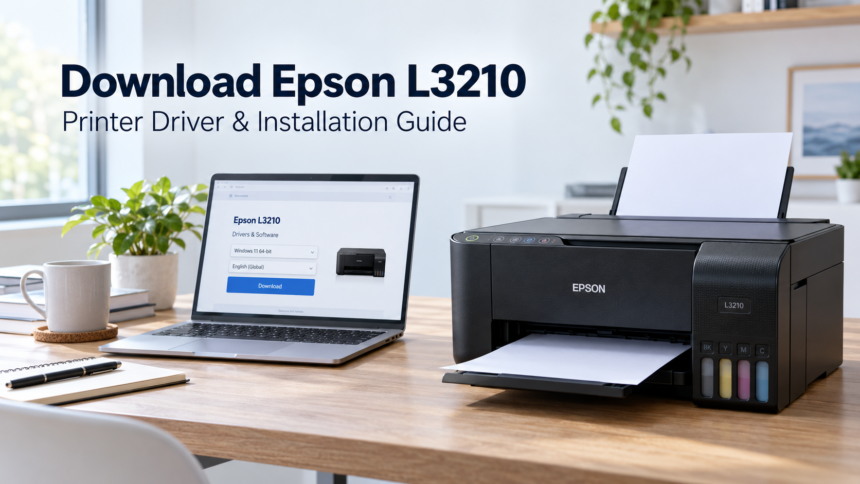
Need to download Epson L3210 software for your computer? Start with Epson’s official support page and choose the driver that matches your operating system. Whether you are setting up the printer for the first time or reinstalling its software, checking the model and system details first helps you choose the right download.
| Quick Bio | Details |
|---|---|
| Product name | Epson EcoTank L3210 |
| Brand | Epson |
| Main functions | Printing, scanning, and copying |
| Computer connection | USB |
| Main downloads | Printer driver and scanner software |
| Official source | Epson L3210 support website |
Where to Download Epson L3210 Drivers
Visit the official Epson L3210 download page. Check the operating system selector before downloading anything, especially if you are using a different computer from the one connected to your printer.
Epson offers a Windows web installer that obtains the printer driver, scanner driver, Epson Software Updater, and additional software. Separate printer and scanner downloads are also listed for supported systems. The complete installer is a useful starting point for a new setup. Epson Indonesia
Before You Download Epson L3210 Software
Confirm that the label on your printer says L3210. Similar model names can make it easy to select the wrong support page.
Next, check your operating system version and, where relevant, whether it is 32-bit or 64-bit. Keep a suitable USB cable ready and ensure your computer has internet access when using a web installer. Allow time to complete the installation and test the printer afterward.
How to Download Epson L3210 Drivers for Windows
Open Epson’s support page on your Windows computer and select your Windows version. Read the compatibility details beside the download rather than choosing a file based only on its name.
- Select the full installer or the individual driver you need.
- Download the file to your computer.
- Open the installer and follow its instructions.
- Connect the printer when requested.
- Complete the setup and restart if prompted.
- Print a test page to check the result.
If you also need to scan documents, check that the scanner software has been installed. A successful print does not automatically confirm that scanning is ready.
Download Epson L3210 Software for Mac
Mac users should select their exact macOS version on Epson’s support website and review the software offered for that version. Check the current compatibility information before downloading.
Open the downloaded package and follow its installation instructions. After connecting the printer by USB, check your Mac’s Printers & Scanners settings. Add the L3210 if it is missing, then try printing a short document. Epson’s L3210 support page also provides setup documentation. Epson United Kingdom
Setting Up Epson L3210 Scanning
The printer driver and scanner software perform different jobs. To scan documents, install the scanner package listed for your operating system, then open the supported scanning application.
Epson’s L3210 manual identifies Epson Scan 2 as software required for the scanner feature. Place a document on the scanner glass and try a preview scan before saving the final file. download4.epson.biz
Common Problems After Installation
The Computer Cannot Detect the Printer
Check that the printer is switched on and the USB cable is secure at both ends. If you are using a USB hub, connect the printer directly to the computer. Trying another USB port or cable can help identify a connection problem. download4.epson.biz
Printing Works, but Scanning Does Not
Check whether the scanner package is installed and the correct device is selected in the scanning application. If the problem continues, follow Epson’s troubleshooting instructions for your operating system.
The Download Does Not Appear
Open the support page on a desktop or laptop and check the operating system selection. Epson’s Indonesian L3210 page states that downloads are unavailable on mobile devices. Epson Indonesia
The Installer Reports an Error
Read the error message before attempting another installation. Check that the downloaded file matches your printer model and operating system. If the download was interrupted, obtain a fresh copy from Epson’s website.
FAQs About Download Epson L3210 Drivers
Can I install the Epson L3210 without a CD?
Yes. Download the appropriate software from Epson’s official support website and follow the installer instructions.
Which download should I choose for a new Windows setup?
The full Windows installer is a useful starting point because it obtains both printer and scanner components. Confirm that it supports your operating system before downloading.
Does the Epson L3210 have a Windows 11 driver?
Epson’s Indonesian support page lists Windows 11 64-bit compatibility for its Windows installer and relevant drivers. Check the current listing for your computer. Epson Indonesia
Do I need separate software for scanning?
You need the scanner components as well as the printer driver. These may be obtained through the full installer or installed separately.
Can I connect the Epson L3210 using USB?
Yes. The L3210 supports a USB connection to a computer. Ensure the cable is connected securely before testing printing or scanning. download4.epson.biz
Should I download the driver again if installation fails?
First, check the model, operating system, and error message. If the file is incomplete or incompatible, return to Epson’s support page and download the correct package.
Start Using Your Epson L3210
To download Epson L3210 software successfully, choose the correct model and operating system on Epson’s official website. Complete the installation, then test both printing and scanning so the printer is ready for everyday use.
Read also Harrison LeFrak Startup Investments: Notable Deals and Strategy